

Online Meal Ordering Via MyChart is currently available to patients admitted at the Parnassus Heights, Mission Bay, and Mount Zion campuses
Online Meal Ordering via MyChart
Online meal ordering via MyChart allows patients to choose what they want to eat when they want to eat
through their MyChart account. The system knows the patient’s diet order and allergies. Patients can place
orders for today’s and tomorrow’s meals. Delivery times can be set to arrive at a time that best suits the patient. Please watch the short video below and review the FAQs to find out more.
FAQS
Getting Started
How do I log in to order meals online?
Once you have been admitted to the hospital, you can order meals through the convenience of your MyChart Mobile account. Once logged into MyChart on your mobile device, go to "Your Hospital Stay."
If you are eligible for online meal ordering, you will see the "Let's Eat" option on the main page of your hospital stay. Simply by tapping "Let's Eat," you will be taken to the online meal ordering website to place your order.
You can access MyChart Mobile through your tablet or phone.
For more questions about MyChart, please visit UCSF MyChart Frequently Asked Questions
Do I need to be admitted to the hospital to place a meal order through MyChart?
Yes, you will need to be admitted to the hospital to place a meal order. Meal ordering is not available to outpatients.
Do I need a MyChart account to order meals online?
Yes, you will need to open a MyChart account if you do not have one already.
Upon admission, a link to open an account is automatically sent to the mobile number and/ or the email on file on your account.
For more information on opening a MyChart account, please visit UCSF MyChart Frequently Asked Questions and look for Enrollment Questions.
If you do not have a tablet or mobile phone, please inquire with the unit. Some units have tablets available for patients to access MyChart.
Do I need to download the MyChart app to order meals?
Yes, you will need to access MyChart through the app. The UCSF MyChart Mobile Application is available from the App Store for iPhone, iPad and Android. Download the "Epic MyChart" app and search under California for "UCSF MyChart".
Ordering
How do I place an order through online meal ordering?
To place an order:
- While logged in, select the meal for which you want to place an order.
- For each item you wish to add to your meal:
- In the menu, select the menu item you wish to order. Details for the selected menu item appear.
Tap

or

to select how many servings you want to order.
- Tap Add to My Order.
- When you are done selecting items for your order, tap the shopping cart icon at the bottom-right of the screen. The checkout page appears.
- If the option is available, under When do you want your meal?, select the time you want your meal to be delivered.
- Tap Submit Your Order.
How do I schedule a delivery time?
To schedule a delivery time:
- On a meal's menu page, tap the shopping cart icon in the bottom-right corner of the screen. The checkout page appears.
- Under When do you want your meal? select the time you want your meal to be delivered.
- Tap Submit Your Order.
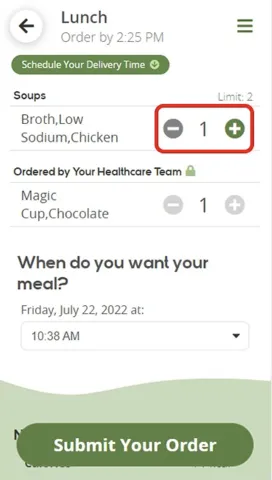
How do I change the quantity I want of a menu item?
If you want to increase the quantity of a menu item in your order, tap
.
If you want to decrease the quantity of a menu item in your order, tap
.
How do I remove an item from my order?
To remove an item from your order:
- Tap the already-selected menu item that you want to remove from your order.
Tap
as needed to reduce the item quantity to 0. The Add to My Order button changes to Remove from My Order.
- Tap Remove from My Order.
What does "Ordered by Your Healthcare Team" mean?
This means that a menu item that was added to your meal by a staff member. It does not count towards the serving limit for the menu item's category and cannot be removed from your order.
What does "We completed selections for this order to better meet your nutritional needs" mean?
This means that a staff member has made any of the following changes to your order to ensure you are receiving an appropriately nutritious meal:
- Removing a menu item
- Adding a needed menu item
- Increasing the servings ordered for a menu item
- Reducing the servings ordered for a menu item
Can I order more food for a meal that I already received an order for?
You can only submit one order per meal. If you want to order an additional tray for the same meal, call the diet office at 415-353-1111 (3-1111 from an internal phone).
How many days in advance can I place an order?
You can submit orders for today's and tomorrow's meals.
What should I do if no meals are available to me?
Please contact a staff member for assistance. Typically, you have not yet been assigned a diet order.
I closed the tab–did I lose my order?
Your order only exists on the current tab. If you open a new tab or close the current one, you may lose your selections.
User Menu
How do I view my allergies?
To view your reported food allergies:
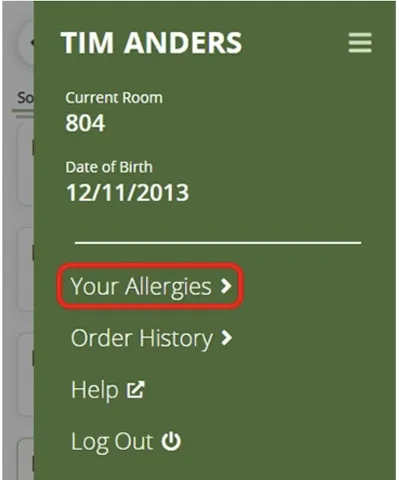
- While logged in, tap on the menu icon in the top-right corner of the screen. The user menu appears.
- From the user menu, tap Your Allergies. A list of your food allergies appears.
What should I do if my allergy information needs to be updated?
Contact a staff member as soon as possible to ensure that your reported food allergies are accurate.
How do I view my order history?
To view your order history:
- While logged in, tap on the menu icon in the top-right corner of the screen. The user menu appears.
- From the user menu, tap Order History. A list of your submitted orders from today and yesterday appears.
What does it mean that part of my Order History is below a dashed line?
Additional trays for the same meal period are separated by dashed lines.
Why don’t my meals come with condiments?
All items are served a la carte to track nutrients accurately, keep items separate for those with allergies, and for sustainability reasons as an effort to eliminate waste. Because everything is served a la carte, you can order the exact condiments or garnishes you want.
Other
I'm a caregiver for a patient, can I place an order for them?
Caregivers can log in and place orders for the patient as long as they have proxy access to the patient’s MyChart account.
For more information on proxy access, please visit UCSF MyChart Frequently Asked Questions
Can I use MyChart online meal ordering to order a tray for someone visiting me?
Guest trays are not currently supported in Digital meal ordering. You may place guest tray orders by calling 415-353-1111 or by dialing 3-1111 from any internal phone.
Do I need to pay for my order?
No, digital meal ordering does not require any payment to place an order.
What if I have a problem with my order?
Please contact the diet office at 415-353-1111 (3-1111 from internal phones) to report any issues with your ordered meal.
Can I use MyChart online meal ordering outside my care facility?
You will need to be actively admitted to the hospital to access MyChart online meal ordering.
If a caregiver is not on-site, as long as they have proxy access to your MyChart account, they can place meal orders on your behalf for the duration of your hospital stay.
For more information on proxy access, please visit UCSF MyChart Frequently Asked Questions
How do I log out of online meal ordering?
While you will be automatically logged out of digital meal ordering if you haven't interacted with the page after a few minutes, you can also manually log out of the site.
To log out of digital meal ordering:
- While logged in, tap on the menu icon in the top-right corner of the screen. The user menu appears.
-
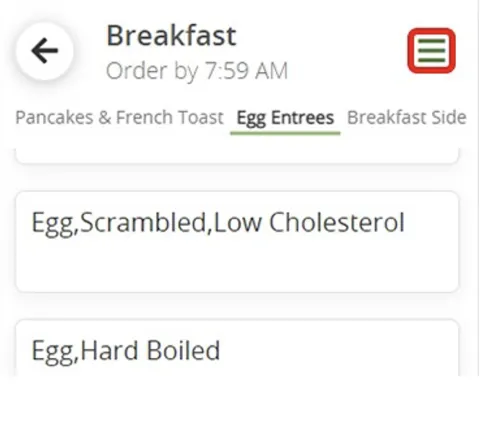
- From the user menu, tap Log Out.